






Picture this: So, you’re shooting photos for your blog. You think you’ve got the perfect shot — one that will be pinned and loved and remembered, until BOOM. You transfer it to your computer and notice something wrong with it. Ugh.
Sound familiar? Going back and reshooting is an option, but why make the effort when there is an even easier fix? Photoshop! Today, we’re discussing a few easy tools (and how to use them!) that you can use to enhance your blog photos in a snap. Here’s a little overview of what you’ll learn:

Ready to dive in?!
Sharpen Tool
Sometimes, certain parts of a photo can look a bit fuzzy and blurred out. To bring more definition to the details in your photos, you can use the sharpen tool. Select the sharpen tool in the tool bar and click on the areas of the photo that you’d like to enhance.
Another way to do this is by applying a filter. From the main menu, go to Filter >> Sharpen >> Sharpen. This will sharpen the photo as a whole and increase the definition. You can see the effect of the sharpening in the photo here where the edges of the (delicious!) cake pieces are more defined after using the sharpen mask.

Dodge Tool
This tool is truly a blessing in disguise! If a photo is underexposed in only certain places, increasing the overall exposure will blow out the brighter areas. In such cases, the dodge tool comes to the rescue. Select the dodge tool from the tool bar, and brush it over the underexposed areas. Voila! They are bright now. You can see how the right side of the photo below is brighter after using the dodge tool!

Related: How to get brighter, better photos in Photoshop in 60 seconds
Crop + Straighten Tool
Despite all the funny ways we position ourselves while shooting photos, some of them may turn out crooked. We can fix the off-position, crooked photos using the crop tool. When you select the crop tool, a small arrow appears at the corners of your photo which you can use to rotate the photo. Rotate the photo until it’s aligned properly and then crop it to remove the extra bits from the corners of the photo. In the photo below, I used the crop + straighten tool to align the lines on the white board with the overall frame of the photo.

Spot healing brush
For all those times when a tiny speck of dust makes its way into the photo, the spot healing brush comes in handy. Select the spot healing brush and click on the areas that you want to clean up. If there are large areas in the photo that you want to clean up, you can increase the brush size at the top in the toolbar settings to make it quicker. I used the spot healing brush to remove a few ink splatters and dust from my photo – easy peasy!

Marquee / Lasso Tool
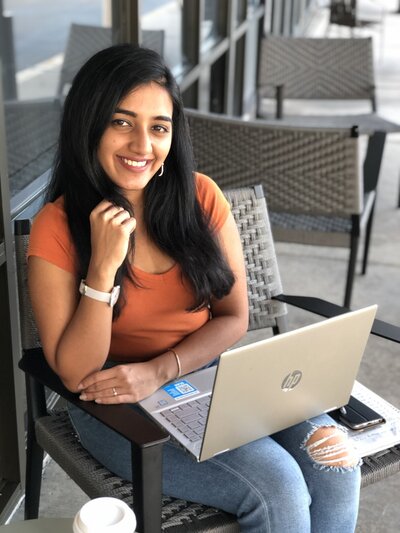
Do you want to crop your photos into a circle, a star or any fun shape? You can use the marquee / lasso tool to draw out the shape and crop the photo. This can be very useful while creating blog post graphics or a circular profile picture like the one below. Here is a detailed tutorial on using the marquee tool.

Related: How to create a clipping mask and why it’s great for bloggers!

















Honestly, my favorite tool to edit my photos is Lightroom. The Adobe CC Photographer’s Special (Photoshop + Lightroom) is 9.99/month, which is totally doable. And shooting in RAW + using Lightroom to edit = the holy grail of blog images. Not even kidding. There’s a selection to automatically fix the warping caused by the fact that lenses aren’t flat. (It’s the greatest thing since macarons.)
Hi Erika, I use lightroom to organize my photos, i love it 🙂 But haven’t used it much for editing, I ll definitely try it now! Thanks xx
These are my favourite types of posts. I have just got Photoshop so this is PERFECT!
Thank you x
Jenna // Beauty And The Style
Awesome to hear that Jenna! 🙂 Enjoy photoshop! x
This is such a fabulous post! I love that you went deeper and gave us a tutorial of the list items instead of simply rattling them off. You are awesome! I can’t wait to put the “Dodge” tool into action. I got all excited when I read that! Thanks for the tutorials!
xx Sydney
Thank you so much sydney 🙂 hope they are helpful! xx
I didn’t realize that about the dodge tool! I will definitely start using it!!
Oh yes it an amazing tool angela 🙂 x
Great post! Love the tutorial!
Thanks a lot 🙂 x
I’ve been using photoshop for around 6 months so I feel pretty comfortable with it, but I tend to get stuck in an editing routine and not branch out to learn new things. a few of these were tools I didn’t know how to use, so thank you for this!!
xo
So welcome johanna! 🙂 Hope these are a good addition to your routine! x
awesome refresher tips, I forgot about ‘sharpen’ and ‘dodge’.. I can always use those!
🙂 Hi Anjelica! Yes, I love the dodge tool a lot, its amazing! x
is it bad that I am a photographer and never used these much. = |
It means your photos are great and no need this kind of fixing 🙂
🙂 yes, editing should be used only to enhance a photo 🙂 Of you think a photo is good without editing, its best to leave it at that! xx
My favorites are curves and color balance! I wish I had learned about the dodge tool earlier; thanks for sharing 😀 -Audrey | Brunch at Audrey’s
Hi Audrey! I absolutely love the curves tool – its a treat, really! 🙂 x
I personally prefer levels. I can’t live without it!!
Thank you for this! So useful – and all the things I felt too stupid to ask about!
Hi Molly 🙂 you are so welcome, thanks a lot! x
Thanks for sharing! I could definitely use these tips!
Kristi | Be Loverly
That’s awesome kristi! xx
I found this post, really helpful. Thanks!
Mafer, Concientizando x
Welcome mafer! 🙂 xx
Love this!! I’ve been using Photoshop for a while, but these were some tools I had never tried before! Thanks so much 🙂
Thanks a lot sally! 🙂 x
There’s so much you can do with Photoshop sometimes it gets overwhelming doesn’t it? Such a powerful tool!
Even after taking AP 2D Design and using photoshop for two years, I didn’t fully understand the dodge tool until now haha. Thank you!
xx, Pia
http://www.gymbagsandjetlags.com
ha ha 🙂 glad to hear that Pia! xx
Awesome tips! I took a few graphic design courses last year and loved them. I learned so much about PhotoShop and InDesign and Illustrator. They were super helpful for my blog images.
I am currently learning indesign and its amazing keating 🙂 xx
This is excellent! Always fun to learn new Photoshop tips.
Christine | DimesandDonuts.com
You bet, I always love learning new tools. Thanks christine! xx
Fantastic post 🙂
http://thenaturalminimalism.blogspot.com
Very useful, thank you. I didn’t know about the sharpen tool, I will definitely use that! x
http://www.wonkylauren.com
🙂 Great to hear that lauren! xx
The straighten tool in lens correction is also a great way to straighten out photos, it leaves your photo the exact same size if you’re using a high res photo by just zooming in a bit when it straightens out. So handy 🙂
Just Little Things xo
Wow, i ll be trying that out. Thanks gemma! x
My go-to tool when I pull an image into Photoshop is levels. I always make sure the histogram is spot on, and usually lighten things up here as I prefer to underexpose in camera so I don’t blow-out the details. 🙂 Loved your suggestions!
Thanks shaina. My go to tool for fixing the overall lightness in the photo is the levels tool – its amazing! xx
Hi!
I noticed that a lot of bloggers use these great fonts on posts “5 Essential Photoshop Tools”, and was wondering if you purchase yours? Or do you use exclusively free ones?
Thanks!
christycee.blogspot.ca
Hi Christy! I purchased that font and have a mix of both paid and free fonts. My go-to sites to purchase fonts are myfonts.com and creativemarket.com. Dafont.com has great free fonts. 🙂
Oooh, this is so wonderful. I think I’ll be using the dodge tool and the spot healing brush quite a bit. <3
Totally! The dodge tool is my fav. 😀
Thank you for these tips. I love the spot healing tool and I will definately have to try using the dodge tool! Thanks xx
Talia // Floral Anchors
Glad it helped, Talia! 🙂
I use Photoshop for my pics all the time and never knew about the dodge tool! Thank you so much for this!! <3
Glad it helped! That tool is a savior. 🙂
Thank you for this! I never used Photoshop, because my pictures always ended up worse. Maybe now I can make it work with these basics!
I think they’ll definitely help. 🙂 Once you know some basics, it makes the whole program more easy. 🙂
I love the straighten tool. So helpful!
Totally! It’s shown me how many crooked photos I take 😀
These are great! x
Blog | A Girl with a Camera
Youtube | A Girl with a Camera
Thank you! 🙂
The sharpen and the crop tool are the mostly used tools in Photoshop. Most the pictures need some kind of adjusting in color or sharpening I guess so. Thank you for pointing out those!
You’re welcome! 🙂
This literally just made my life so much easier. Bless you!
So awesome to hear! 🙂
Yes! I’ve been looking for a quick cheat sheet to using Photoshop since I’m a newbie. This is perrrrfect!
Woohoo! That’s awesome, Trudy.
Such a helpful post. Thank you so much!
I’m glad you found this helpful, Leanne! Thank you for reading 🙂
Outstanding! I am glad to be here…. Have Learned a lot from here….http://clippingphotoshop.com/
So glad you’re here, Saba!
This is so helpful… My 14 year old is trying to help me learn photoshop (seriously, she’s a wiz) but there are days I’d like to skip the attitude so learning to do myself is super helpful! 😉
Too funny! So glad this was helpful 🙂
AMAZING! Mine is the patch tool, and the spot healing brush, and the dodge tool! Those are great!
Ohh yes those are some awesome ones!
This is super helpful! I just got started designing my blog, and have been particularly struggling with figuring out the Adobe systems. So many tools, so little patience to learn what’s important and what’s not!!! Would you happen to know of any helpful, well-written Adobe Illustrator guides?
I’m so glad you found this post helpful, Kalie! I personally don’t know of any AI guides but I do know there are lots of AI experts within our private Facebook Community who would love to help if you ask there:
https://www.facebook.com/groups/blogandbizbffs/
Good luck!
This is such a very informative blog.. Thanks for sharing it
So glad you like it! Thanks for letting me know 🙂
This is a great tutorial to help improve your Photoshop skills. Your photo editing tips and tricks really helped me tremendously. I will make sure to practice these this week.
Yay! I’m so glad this post was helpful for you. Good luck! 😀
Really tempting stuff! I am the master of PhotoScape but as I’m turning more and more to the high end graphics, it just can’t do the job. Never liked Photoshop, but oh well, time to start learning it!
Yes, it might not be the easiest tool to use but it’s very powerful! Best of luck, Atila. 🙂
It was so, so helpful, thank you very much <3
I’m so happy you enjoyed it, Ana. Thanks for letting me know! 🙂
It’s obviously creative & so much helpful. Thanks for share with us this type of nice info.
No problem, Danielle! I’m so glad this post was helpful for you. 🙂
Amazing stuff…thanks for this….try this for your photo editing needs ,,,,
AfterClick – Amazing Photo Editor Filters and Effects
https://itunes.apple.com/in/app/afterclick-amazing-photo-editor/id964926131?mt=8
Thanks for putting this post together for us. So many cool tools here. The Sharpen tool is so useful many times…Dodge tool is new for me ! Thanks
I’m so glad you enjoyed the post! Best of luck to you! 😀
Thanks Melyssa Griffin !
These tools seems helpful. Good list. Thanks for sharing.
Film Negative Scanning
Thanks for sharing the Photoshop Tools. Get more resources-https://www.pixelzcenter.com/
Your topic are so important because first know the using of Photoshop tools.Than any one use it clearly
Thanks for sharing this. These little tools are makes a big difference. Helpful post.
Movie Production House
I’m glad to hear it! 🙂
Your Photo editing tips are really helpful an anyone who read this post this person earn god and more knowledge about this..So thanks for share an important tips……
My pleasure, Atreo! Thanks so much for reading. 🙂
Hello Melyssa,
Chaitra, did a fantastic job and shared with us some spectacular photo editing tips which make it easy for individuals to instantly edit their blog photos.
Many thanks for lovely share 🙂
Regards
Mairaj
Hello, Muhammad! 🙂 I am so happy to hear you found Chaitra’s tips and tricks helpful!
Great this one. Thanks for sharing this fully informative and helpful blog. We also deliver such image Background Removal services. Visit http://bit.ly/2cZua4D for more help.
i think one of the less known softwares is this free editing software
http://t.wowtrk.com/SH9YJ
Your photo editing tutorial really amazing. Every time you get really useful tips. Thanks for shearing.
You’re so welcome, Sofiq! 🙂 Thank you for checking out the tutorial 🙂
Most welcome.
Great photo editing tutorial indeed, informative and useful too. Thanks a lot for sharing with the community. Go ahead.
Glad to hear you enjoyed the tutorial, thank you for checking it out! 🙂
Amazing information thanks. PhotoViewerPro is another photo editor.
Thank you for sharing, Cynthia! 🙂 I haven’t tried out that platform. 🙂
Interesting post… all are fantastic tool with best description, you can hire product photography services
I have never come across a more detailed photo editing information on a blog. Good Job!!! These are really useful tips and I have learnt a lot of things I had no clue about. I also found an online photo editing tutorial site, where one can get a step by step direction on improving editing skills. https://tinyurl.com/yarz99ty
Wow, great information about photoshop and explained in detail. This article was really helpful to me. A good friend of me mentioned a program which is very populair at the moment wich I will follow soon. – http://bit.ly/2CowGPc